Let's talk about Fly.io Sprites aka stateful sandboxes
Writing demos and prototypes has never been this fun and easy when combined with Func-to-web!


Note: I’m not affiliated with Fly.io; I’m just a regular user of their products. 🙃
I recently discovered this new project called Sprites by Fly.io, a cloud computing platform.
This project aligns with others, such as e2b, blaxel, etc, aiming to provide secure environments for executing arbitrary code often generated by Artificial Intelligence (AI). But I think Sprites has a few advantages over the competition:
It is fast. You can spawn a virtual machine (VM) in less than two seconds!
It is also cheaper when I compare it to other providers. One inconvenience I found now is that there are not many VM options (there is only one option at the moment of writing this article)
As it is a stateful VM, you can stop and restart it while still being able to access the same environment and data.
You can create backups of your data on the VM. Useful when you are trying diverse experiments and want to be sure to come back to a previous version of your VM where everything was working smoothly.
Each Sprite gets a unique HTTP URL, making it easy to expose web services with little effort. More about it later.
Installation
I’m not sure if you can use the Sprites command-line interface without a Fly.io account. 🫤 For the rest of the article, I will therefore assume that you have one.
# On Linux / Unix
$ curl -fsSL https://sprites.dev/install.sh | sh

# On Windows (You will need admin privileges to run the last command)
> Invoke-WebRequest -Uri "https://sprites-binaries.t3.storage.dev/client/v0.0.1-rc31/sprite-windows-amd64.zip" -OutFile "sprite-windows-amd64.zip"
> Expand-Archive sprite-windows-amd64.zip -DestinationPath $env:USERPROFILE\bin
> [Environment]::SetEnvironmentVariable("Path", $env:Path + ";$env:USERPROFILE\bin", "User")
More information about how to install the binary can be found here.
Command Line Usage
The first thing you will want to do is to authenticate to the Fly.io platform.
$ sprite org authThen you can run this command to create your first sprite. It will automatically run the sprite console command under the hood to connect you to your virtual machine (VM) aka Sprite in their jargon.
# "hello" is the name of our sprite (or virtual machine)
$ sprite create hello
Now that you are connected, I invite you to run the ls -al command in your home directory. You will see something like the following:
$ sprite@sprite:~$ ls -al
total 48
drwxr-xr-x 1 sprite sprite 4096 Jan 28 01:37 .
drwxr-xr-x 1 sprite sprite 4096 Jan 28 01:37 ..
-rw-r--r-- 1 sprite sprite  750 Jan 28 01:51 .bashrc
drwxr-xr-x 3 sprite sprite 4096 Jan 28 01:51 .claude
drwxr-xr-x 3 sprite sprite 4096 Jan 28 01:51 .codex
drwxr-xr-x 4 sprite sprite 4096 Jan 28 01:51 .config
drwxr-xr-x 4 sprite sprite 4096 Jan 28 01:51 .cursor
drwxr-xr-x 3 sprite sprite 4096 Jan 28 01:51 .gemini
-rw-r--r-- 1 sprite sprite   88 Jan 28 01:51 .gitconfig
drwxr-xr-x 6 sprite sprite 4096 Jan 28 01:36 .local
-rw-r--r-- 1 sprite sprite    0 Jan 28 01:52 .sudo_as_admin_successful
-rw-r--r-- 1 sprite sprite  383 Jan 28 01:51 .tcshrc
-rw-r--r-- 1 sprite sprite 1045 Jan 28 01:51 .zshrc
Yes, the VM comes with many coding agents pre-installed: Cursor, Gemini CLI, Claude Code, and Codex.
It also comes with a variety of programming runtimes, including Python, Node.js, and Go (there are more).
Now, we will start a little experiment, start an HTTP server, and leave the console. The following command starts an HTTP server that serves files from the current directory and runs in the background. Port 8080 is important because it is the default internal port used by Sprites to map external HTTP calls.
$ python -m http.server 8080 &and then exit the console with the exit command. Now run the sprite use hello command to avoid having to pass the -s option on every other sprite command you will want to use. It will set the hello sprite as the default sprite and create a .sprite file in your current directory to save that information.
If you list your created sprites with the sprites list command, you will see something like this:
┌────────┬───────┬───────┐
│  NAME  │STATUS │CREATED│
├────────┼───────┼───────┤
│hello   │running│21m ago│
└────────┴───────┴───────┘
To get the HTTP URL of our sprite, run the command sprite url. Follow the link, and you will end on a page demanding (Fly.io) authentication. After authenticating, you can see the index page with the contents of your sprite home folder.
However, let’s be honest, if we want to share our work with a large audience, we don’t want to bother them with creating a Fly.io account just to view our cool demo. The sprite command line interface has a command to make the HTTP service public. Run the command sprite url update --auth public and access the link again. Now there is no more authentication, and we end directly on the index page! 😁
Wait five minutes, then run the sprite list command again.
┌────────┬──────┬───────┐
│  NAME  │STATUS│CREATED│
├────────┼──────┼───────┤
│hello   │warm  │40m ago│
└────────┴──────┴───────┘
Now the VM is in the warm state, meaning that it is stopped. Perhaps it is time to let you know that you only pay when your VM is up and running 😄. The VM is stopped after a few minutes of inactivity (the exact duration is unclear). However, if it has been stopped recently, it wakes up instantly (in a few hundred milliseconds). To test this, go to your public link again, and you should instantly see the index page being served.
If it is switched off for a long time, it will eventually reach a cold state and take a little longer to wake up (a few seconds).
You can also run long-running commands in detached mode and check them with the sprite session list / sprite session attach <id> commands. I was unable to run that on my PowerShell terminal (if you know how to do it, tell me in comments).
Programmatic Usage
The real fun begins when we start running programs on the Sprites. We will use Python to write the examples, as it is the language I know best. But let me be frank, at the moment of writing, the documentation for the Python SDK sucks; it is neither accurate about its features nor complete. I had to dig into the source code to understand how to use it.
A URL summarizer
Like I said in the beginning, one thing where Sprites shine is to help us quickly share ideas with the world. To quickly share prototypes, I recently found this cool project called func-to-web. It transforms your Python functions into web pages. Let’s see how to use it combined with Sprites.
First of all, if you want to follow along with the experience, you should create a source folder and install a virtual environment. I will use uv in my case, but you can use pip if you want.
$ uv init sprite-demoNow install the following dependencies:
$ uv add func-to-web litellm tavily-python sprites-pyFor this first demo, we will create a tool to summarize webpages, so we want a library to fetch webpages. The usual requests and httpx libraries allow us to fetch web resources, but today, with SPA applications distributed all over the web, it is becoming difficult to retrieve the content of web pages using traditional tools. This is why I use Tavily for this kind of task; It is one of the best web search tools on the market right now. I’m not affiliated with Tavily; I just like their product. 😁
You can create a free account on their website if you want. Anyway, you can just replace it with your favorite library and still follow the tutorial.
LiteLLM is an excellent library to call multiple Large Language Model (LLM) providers with a unified API. I will use it with the Groq provider along with the OpenAI GPT OSS-20B model, but feel free to use your favorite provider. Groq offers free developer accounts so you can start using its products.
Here is the complete example to run the demo locally on your machine.
from func_to_web import run
from tavily import TavilyClient
import litellm

# Make sure you define the TAVILY_API_KEY
# On Linux / Unix: export TAVILY_API_KEY="api key"
# On Windows Powershell: $env:TAVILY_API_KEY="api key"
tavily_client = TavilyClient()


def fetch_url_content(url: str) -> str:
    """
    Args:
        url: url to fetch

    Returns:
        str: markdown content of the url.
    """
    response = tavily_client.extract(urls=[url])
    return response['results'][0]['raw_content']


def summarize_url(url: str) -> str:
    """
    Summarizes a webpage in the language it is written.
    """
    try:
        content = fetch_url_content(url)
    except Exception as e:
        print(e)
        return 'Unable to fetch URL content'

    # Make sure you define the GROQ_API_KEY before running the script
    response = litellm.completion(
        model='groq/openai/gpt-oss-20b',
        messages=[
            {
                'role': 'user',
                'content': f'Summarize this article in the language it is written: <text>{content}</text>'
            }
        ],
    )
    return response.choices[0].message.content


if __name__ == '__main__':
    run(summarize_url, port=8080)
You can copy this into a file named summarizer.py and run the following command to start it:
$ uv run summarizer.pyIf you open http://locahost:8080 in your browser and enter a URL, you should see the summary in the output. Here is an example in my case.
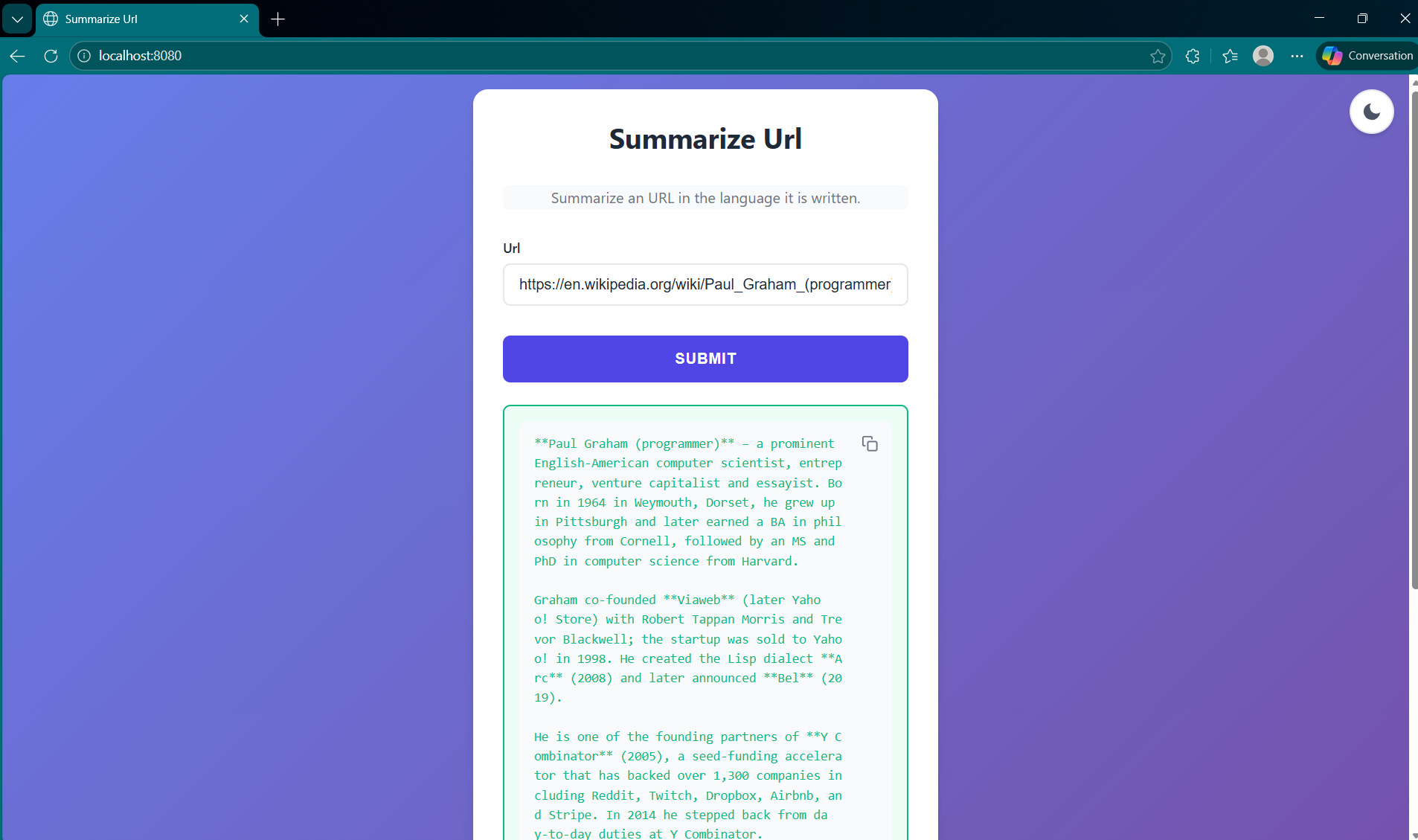
Note:
You should set
GROQ_API_KEYandTAVILY_API_KEYenvironment variables before running the script.
Now, we need to deploy this script on our Sprite. As I mentioned previously, the Python SDK is poorly documented at the moment (release 0.0.1a1!), but after several attempts, I wrote the following script. You can copy it into a file called sprite_copy.py in the same folder as summarizer.py.
Again, you should set GROQ_API_KEY and TAVILY_API_KEY environment variables before running the script.
import os
import inspect
from sprites import SpritesClient

import summarizer

# Instantiates a client
client = SpritesClient(token=os.environ["SPRITE_API_TOKEN"])

# Get the sprite object by its handle
sprite = client.sprite("my-sprite")

fs = sprite.filesystem("/home/sprite")
source = inspect.getsource(summarizer)
hello_path = fs / "summarizer.py"
hello_path.write_text(source)
Ok, the code is copied, but… your environment is not copied. 🙃
Two solutions:
You install uv on your Sprite and recreate the environment as you did on your local environment.
You can be as lazy as I am and just run
pip installfunc-to-web litellm tavily-python. You may want to run it in a virtual environment if you worry about isolation, but for this demo, I don’t see the point.
Now connect to your Sprite with the sprite console command, and you should see the Python file in your home directory. Again, set the GROQ_API_KEY and TAVILY_API_KEY environment variables and run the script in the background or in detached mode if you prefer.
$ python summarizer.py &Make your URL public if you want, with the sprite url update --auth public command, and voilà! Your cool application is now available for the world to test! 😎

A data explainer
The first application was good, but we can do even better. For this second project, we will want to query CSV / Excel files in natural language. We will use OpenAI-Agents for our AI agent SDK, Polars as our dataframe library, tabulate to create a markdown representation of our dataframe, and Matplotlib, the ubiquitous library for plotting.
You can reuse the same sprite that was created earlier, but I’ll just create a new one.
$ sprite create data-analyserInside, prepare the Python environment.
$ pip install openai-agents tabulates polars pillow pydantic func-to-web litellmNote: To test the project locally, you will also need to install these dependencies with uv.
If there is any interest in the comments, I may write an article on how to use the OpenAI-Agents SDK. However, since that is not the purpose of this article, I will just provide the final code with a detailed explanation.
Note: Part of this code was generated with the help of AI (Claude).
import io
import tempfile
from pathlib import Path
from typing import Annotated, Literal

from PIL import Image
from PIL.ImageFile import ImageFile
from func_to_web import run
from pydantic import BaseModel, Field, ConfigDict
from func_to_web.types import DataFile, FileResponse

import matplotlib.pyplot as plt
import polars as pl
from agents import Agent, RunContextWrapper, Runner, set_tracing_disabled, function_tool
from tabulate import tabulate

# We prevent OpenAI to trace our run
set_tracing_disabled(True)


class CSVResult(BaseModel):
    plot: Annotated[str | None, Field(description='Path to a generated plot file if needed')]
    answer: Annotated[str, Field(description='Answer to the question')]


class DataContext(BaseModel):
    model_config = ConfigDict(arbitrary_types_allowed=True)

    df: pl.LazyFrame
    result_path: Path
    plot_path: Path


@function_tool
def analyse_query(wrapper: RunContextWrapper[DataContext], user_question: str) -> str:
    """
    Analyses the query and the data file and returns instructions to perform the SQL query.

    Args:
        user_question: The natural language question from the user

    Returns:
        Instructions to perform the SQL query
    """
    df = wrapper.context.df

    # Get a head df for context
    head_df = df.head(5).collect()
    preview = tabulate(head_df, headers=head_df.columns, tablefmt='pipe', showindex=False)
    print('== preview ==')
    print(preview)

    return f"""To answer this question, you need to generate a SQL query.
    Available columns in the data: {', '.join(head_df.columns)}

    Here is a preview of the first rows of the data file:
    {preview}

    Generate a SELECT statement that answers: "{user_question}"

    Use the table name 'data' in your SQL query.
    Example: SELECT column1, SUM(column2) FROM data WHERE condition GROUP BY column1

    After generating the SQL, call execute_sql_query with your SQL statement.
    """


@function_tool
def execute_sql_query(wrapper: RunContextWrapper[DataContext], sql_query: str) -> str:
    """
    Execute a SQL query on the loaded data and save results to result.csv.

    Args:
        sql_query: Valid SQL SELECT statement to execute

    Returns:
        Markdown representation of the resulting dataframe that can be used to answer the user question.
    """
    df = wrapper.context.df
    print('sql query:', sql_query)

    with pl.SQLContext(data=df.collect(), eager=True) as sql_ctx:
        result_df = sql_ctx.execute(sql_query)

    # We save the result dataframe
    result_df.write_csv(wrapper.context.result_path)

    # We return the markdown representation
    markdown = tabulate(result_df, headers=result_df.collect_schema().names(), tablefmt='pipe', showindex=False)
    print('== Resulting markdown ==')
    print(markdown)
    return markdown


@function_tool
def create_visualization(
        wrapper: RunContextWrapper[DataContext],
        chart_type: Literal['auto', 'line', 'bar', 'pie', 'scatter', 'grouped_bar'] = 'auto',
        x_column: str = '',
        y_column: str = '',
        group_column: str = '',
        title: str = 'Data Visualization',
) -> str:
    """
    Create a visualization from result.csv and save as plot.png.

    Args:
        chart_type: Type of chart - "line", "bar", "pie", "scatter", "grouped_bar", or "auto"
        x_column: Column name for x-axis (optional, uses first column if not specified)
        y_column: Column name for y-axis (optional, uses second column if not specified)
        group_column: For grouped_bar, column to group by (optional)
        title: Title for the chart

    Returns:
        The full path of the generated plot.

    Chart Types:
    - line: Evolution over time, trends
    - bar: Simple comparisons
    - pie: Distribution, market share, proportions
    - scatter: Correlation, relationship between two variables
    - grouped_bar: Multi-factor comparisons (e.g., sales by product AND store)
    """
    result_csv_path = wrapper.context.result_path
    df = pl.read_csv(result_csv_path)

    # Auto-detect columns if not specified
    columns = df.columns
    if not x_column:
        x_column = columns[0]
    if not y_column:
        y_column = columns[1] if len(columns) > 1 else columns[0]

    # Extract data
    x_data = df[x_column].to_list()
    y_data = df[y_column].to_list()

    # Auto-detect chart type if needed
    if chart_type == 'auto':
        # Simple heuristics for auto-detection
        num_cols = len(columns)

        # If 3+ columns, might be grouped data
        if num_cols >= 3 and group_column:
            chart_type = 'grouped_bar'
        # If asking about distribution/proportions (single aggregated column)
        elif num_cols == 2 and len(df) <= 10:
            chart_type = 'pie'
        # If x-axis looks like dates
        elif any(keyword in x_column.lower() for keyword in ['date', 'month', 'year', 'day']):
            chart_type = 'line'
        else:
            chart_type = 'bar'

    # Create plot
    plt.figure(figsize=(10, 6))

    if chart_type == 'line':
        plt.plot(x_data, y_data, marker='o', linewidth=2, markersize=6)
        plt.xlabel(x_column)
        plt.ylabel(y_column)
        plt.xticks(rotation=45, ha='right')
        plt.grid(True, alpha=0.3)

    elif chart_type == 'pie':
        # Pie chart for distribution/proportions
        colors = plt.cm.Set3(range(len(x_data)))
        plt.pie(y_data, labels=x_data, autopct='%1.1f%%', startangle=90, colors=colors)
        plt.axis('equal')

    elif chart_type == 'scatter':
        plt.scatter(x_data, y_data, s=100, alpha=0.6, edgecolors='black', linewidth=0.5)
        plt.xlabel(x_column)
        plt.ylabel(y_column)
        plt.grid(True, alpha=0.3)

    elif chart_type == 'grouped_bar' and group_column not in columns:
        # Pivot data for grouped bars
        groups = df[group_column].unique().to_list()
        x_unique = sorted(set(x_data))

        # Prepare data for each group
        group_data = {}
        for group in groups:
            group_df = df.filter(pl.col(group_column) == group)
            group_data[group] = []
            for x_val in x_unique:
                matching = group_df.filter(pl.col(x_column) == x_val)
                if len(matching) > 0:
                    group_data[group].append(matching[y_column][0])
                else:
                    group_data[group].append(0)

        # Plot grouped bars
        x_pos = range(len(x_unique))
        width = 0.8 / len(groups)

        for idx, (group, values) in enumerate(group_data.items()):
            offset = width * idx - (width * len(groups) / 2) + width / 2
            plt.bar([x + offset for x in x_pos], values, width, label=str(group))

        plt.xlabel(x_column)
        plt.ylabel(y_column)
        plt.xticks(x_pos, x_unique, rotation=45, ha='right')
        plt.legend(title=group_column)
        plt.grid(True, axis='y', alpha=0.3)

    elif (chart_type == 'grouped_bar' and group_column not in columns) or chart_type == 'bar':
        plt.bar(x_data, y_data, color='steelblue')
        plt.xlabel(x_column)
        plt.ylabel(y_column)
        plt.xticks(rotation=45, ha='right')
        plt.grid(True, axis='y', alpha=0.3)
    else:
        raise ValueError("Error: Unknown chart type '{chart_type}'. Use: line, bar, pie, scatter, grouped_bar, or auto")

    plt.title(title)
    plt.tight_layout()

    # Save plot
    plt.savefig(wrapper.context.plot_path, dpi=150, bbox_inches='tight')
    plt.close()

    return wrapper.context.plot_path.absolute().as_posix()

def get_dynamic_instructions(wrapper: RunContextWrapper[DataContext], agent: Agent[DataContext]) -> str:
    context = wrapper.context
    # Get schema info for instructions
    schema = context.df.collect_schema()
    columns_info = ", ".join([f"{name} ({dtype})" for name, dtype in zip(schema.names(), schema.dtypes())])
    return f"""You are a data analysis assistant that helps users query CSV/Excel files using SQL.
The data has been loaded with these columns: {columns_info}

Your workflow:
1. When asked a question, generate appropriate SQL query using table name 'data'
2. Call execute_sql_query with your SQL
3. If the question asks for visualization, call create_visualization with appropriate chart type:
   - "line": For trends, evolution over time (sales trends, monthly progression)
   - "bar": For simple comparisons (top products, store performance)
   - "pie": For distribution, proportions, market share (% of sales by product)
   - "scatter": For correlations, relationships (price vs quantity, temperature vs sales)
   - "grouped_bar": For multi-factor comparisons (sales by product AND store)
   - "auto": Let the system decide (recommended)
4. Call format_final_answer with a clear explanation of the findings
5. After all tools complete, provide your final answer as plain text explaining what you found

Chart selection hints:
- Keywords like "share of", "distribution" → pie
- Keywords like "correlation", "relation between" → scatter
- Keywords like "by X and by Y" (multiple groupings) → grouped_bar
- Keywords like "evolution", "trend", "during" → line
- Simple comparisons → bar

Important SQL notes:
- Table name is always 'data'
- Use proper SQL syntax (SELECT, WHERE, GROUP BY, ORDER BY, etc.)
- For aggregations use SUM(), AVG(), COUNT(), etc.
- For time-based queries, ensure proper date filtering
- For date fields, try to respect the format used in the CSV file

Be concise and helpful. Respond in the language the question is written. Explain your findings clearly.
"""


def get_dataframe_from_file(data_path: Path) -> pl.LazyFrame:
    """
    Args:
        data_path: data file path

    Returns:
        Polars lazy dataframe
    """
    if data_path.suffix.lower() == '.csv':
        return pl.scan_csv(data_path)
    elif data_path.suffix.lower() in ['.xlsx', '.xls']:
        # For Excel, we need to read first then convert to lazy
        df_eager = pl.read_excel(data_path)
        return df_eager.lazy()
    else:
        raise ValueError("Unsupported file format. Use .csv, .xlsx, or .xls")


def analyze_data_file(question: str, data_file: DataFile) -> list[str | ImageFile | FileResponse]:
    """Answers questions asked in natural language, from CSV or Excel files."""
    with tempfile.TemporaryDirectory() as temp_dir:
        temp_dir = Path(temp_dir)
        result_path = temp_dir / 'result.csv'
        plot_path = temp_dir / 'plot.png'
        df = get_dataframe_from_file(Path(data_file))
        context = DataContext(df=df, result_path=result_path, plot_path=plot_path)

        agent = Agent[DataContext](
            name='CSV query analyzer',
            output_type=CSVResult,
            instructions=get_dynamic_instructions,
            tools=[analyse_query, execute_sql_query, create_visualization],
        )

        result = Runner.run_sync(agent, question, context=context)
        api_response = [result.final_output.answer]
        if result.final_output.plot:
            plot_bytes = plot_path.read_bytes()
            api_response.append(Image.open(io.BytesIO(plot_bytes)))
            api_response.append(FileResponse(data=plot_bytes, filename='plot.png'))

        return api_response


if __name__ == '__main__':
    run(analyze_data_file, port=8080)
Some notes:
I was unable to use Groq models because they do not seem to support function tools. So I default with OpenAI models, but you can try some free options out there like Gemini models. You can customise the agent creation process by specifying the model as follows:
agent = Agent[DataContext](
            name='CSV query analyzer',
            output_type=CSVResult,
            instructions=get_dynamic_instructions,
            model='litellm/gemini/gemini-3-flash'
            tools=[analyse_query, execute_sql_query, create_visualization],
        )
We define three tools to help the AI:
analyse_query: a tool to help the agent understand what is inside the data file, and generate a correct SQL query.execute_sql_query: a tool to execute the sql query and save the result in a file.create_visualization: a tool to create a plot to help the user visualize the result in case of a comparison.
When using OpenAI models, I notice that it does not use the first tool, analyse_query. It was capable of understanding the data and generating a correct SQL query just with the initial instructions. 😅
If you pass an Excel file, only the first sheet will be loaded.
Honestly, I also want to show how to run the tools in sprites (sandboxes) and get the results on the machine running the agent, but this article is already longer than I expected. So, I will give you this as an exercise, and maybe write a follow-up article with my solution. 😄
Now, you can copy the file to your Sprite like we previously did and run it like this (be sure to set your LLM model API key as an environment variable):
$ python csv_analyzer.py &You should see an interface like the following. I use this sample pokemon data for testing.
This is what I get when I ask: “Compare the average HP of each Pokémon type”.

This is all for this article, hope you enjoy reading it. Take care of yourself and see you soon. 😁